Godot Integration Guide
Installation
Step 1: Prerequisites
- Godot engine 4.5 or later.
- Nexverse Godot plugin- Download.
- An active internet connection.
- Account Id and config id from Nexverse publisher dashboard. Refer to the App Onboarding Guide for detailed steps to generate these identifiers.
Step 2: Import the Plugin
- Open your Godot project
- Navigate to
AssetLib> Import
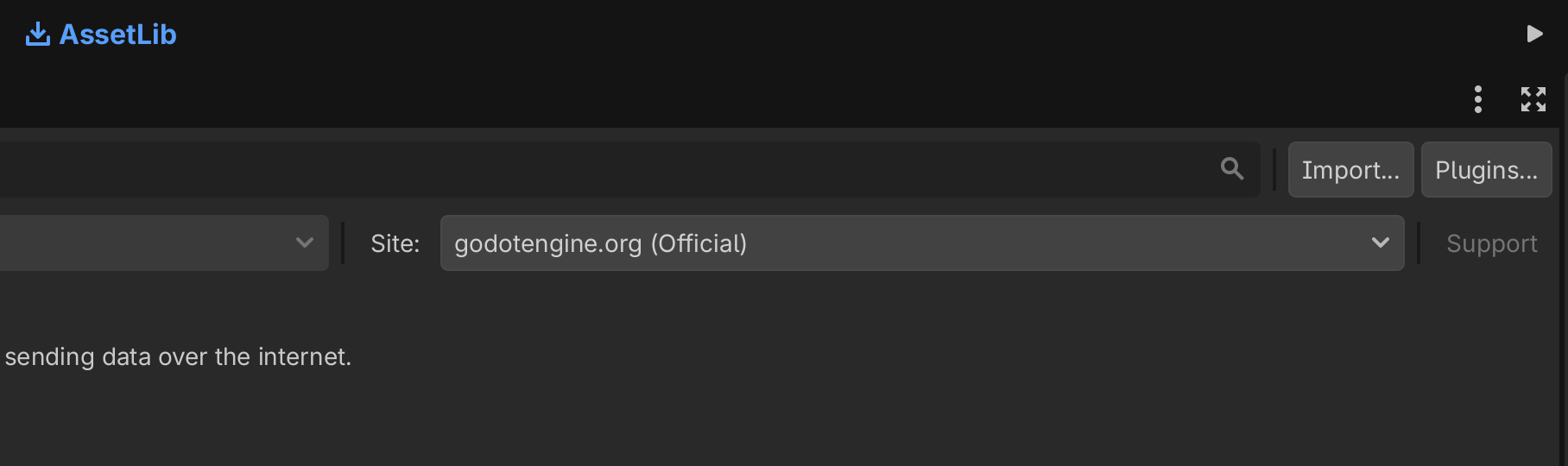
Step 3: Select the Plugin File
Choose the nexverse-godot-plugin.zip file. The plugin will load and be added to addons automatically.
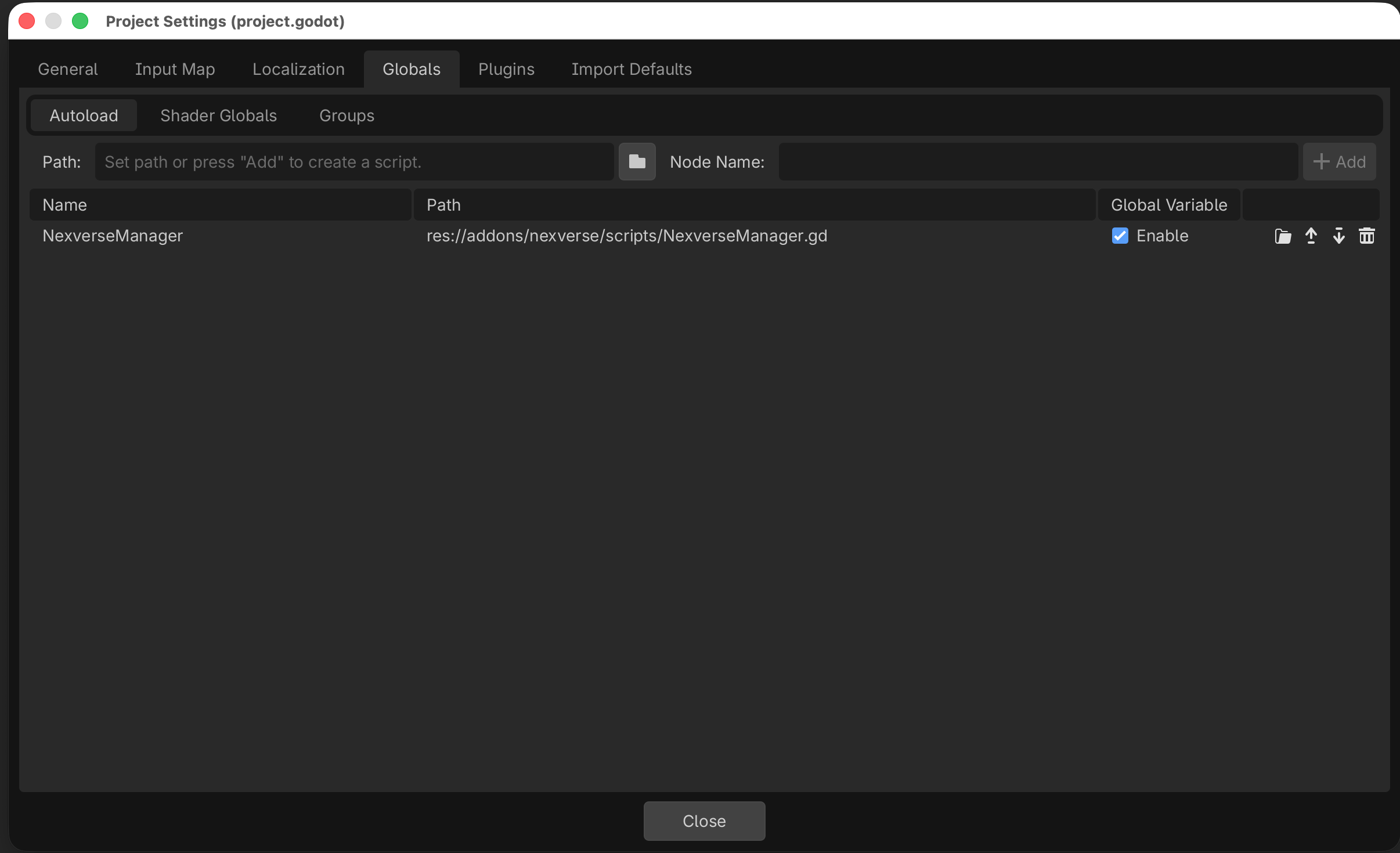
Step 4: Verify Installation
Verify the extension installation by checking if Nexverse is enabled in the installed plugin list found in Project > Project Settings > Plugins
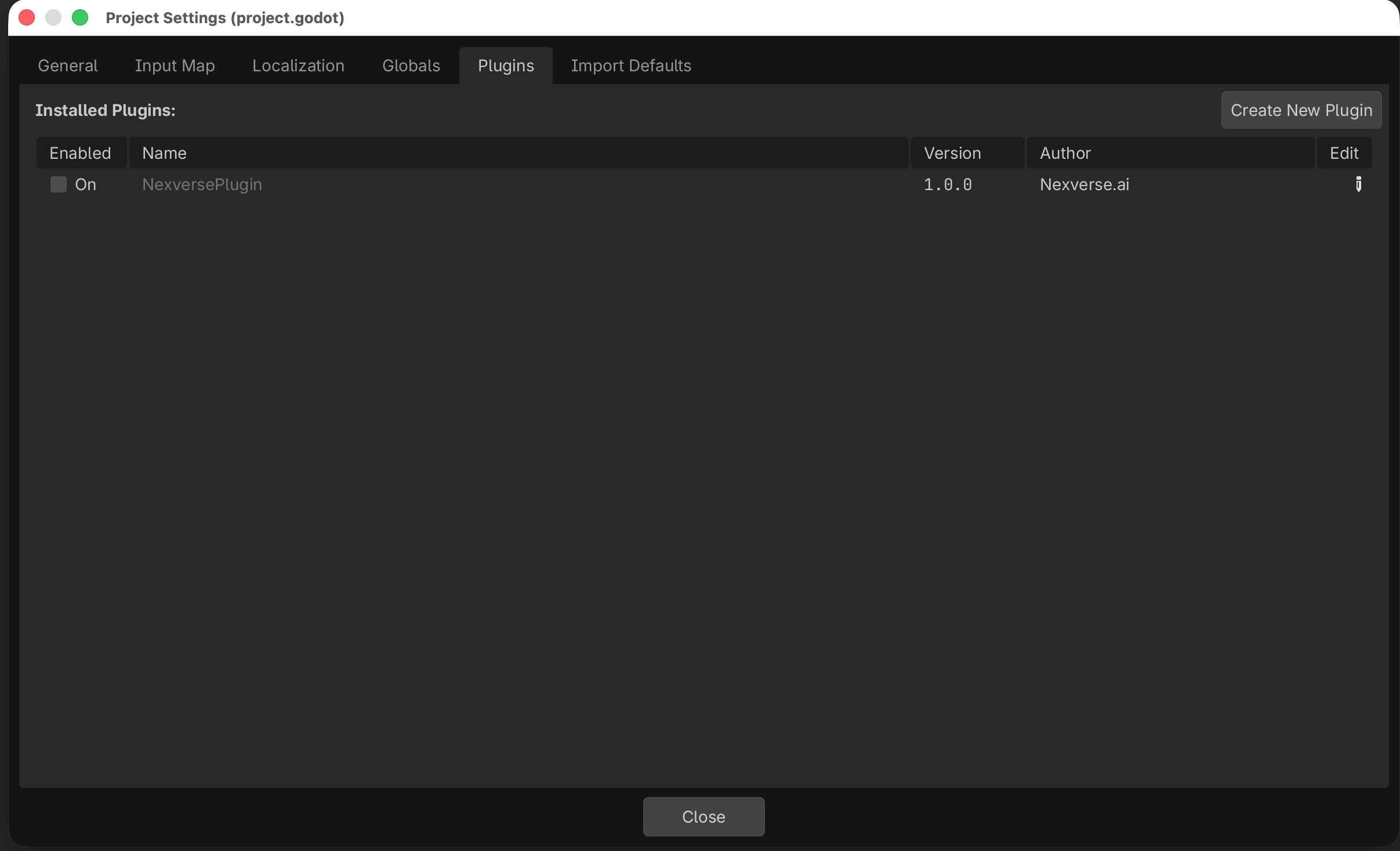
Step 5: Add to Globals
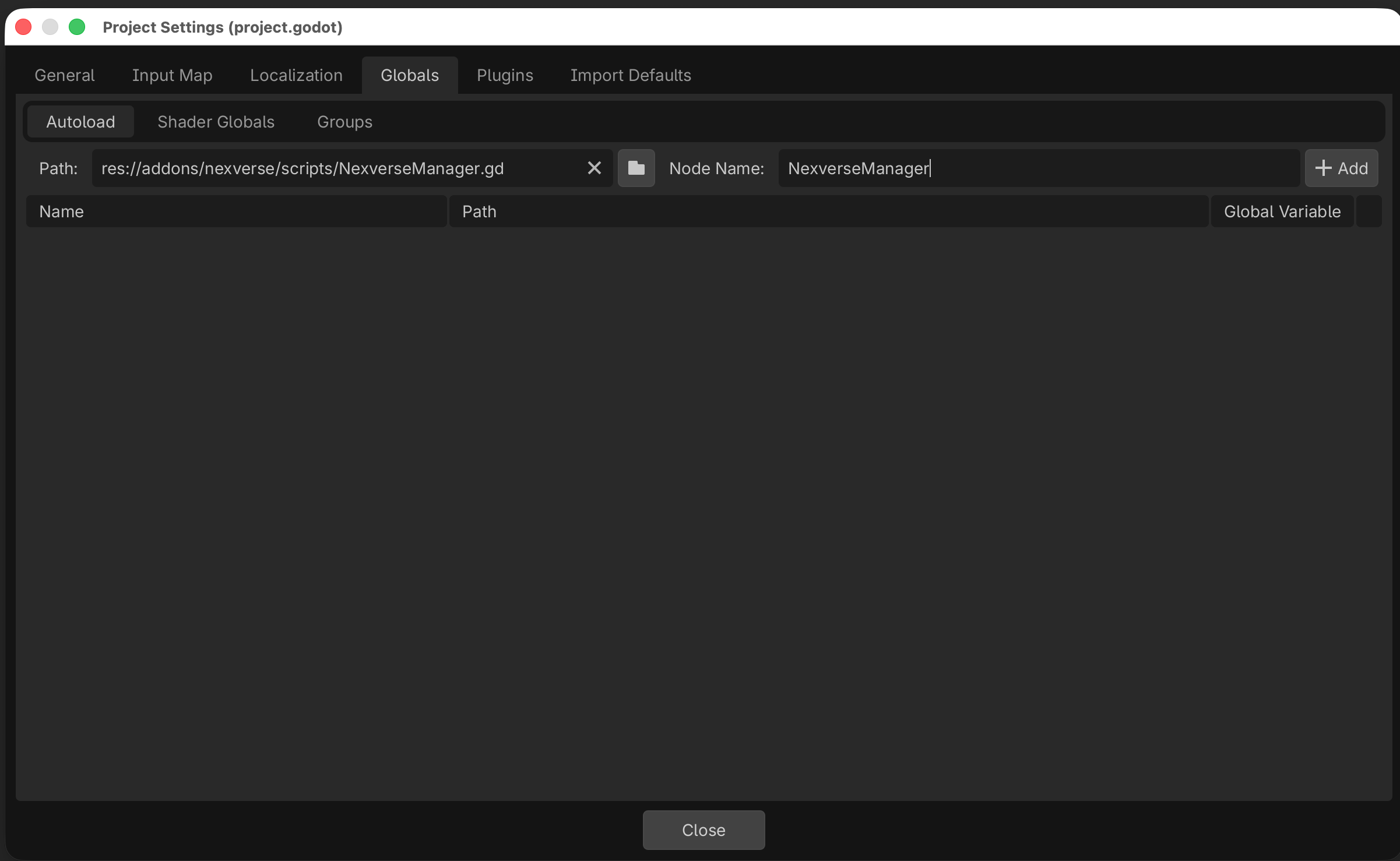
Add the NexverseManager script to globals. To add open Project > Project Settings > Globals > Autoload.
Set Path to: res://addons/nexverse/scripts/NexverseManager.gd
Set Node Name to: NexverseManager
SDK Initialization
The SDK must be initialized before making any ad calls.
  func _ready() -> void:
   NexverseManager.InitSDK(<your_account_id>, <your_app_id>)
SDK Initialization Callbacks
Use the NXV_SDK_Listener class to handle initialization callbacks. We recommend adding this during the _ready method.
  func _ready() -> void:
	var listener = NexverseManager.NXV_SDK_Listener.new()
	listener.Sdk_initialized = _on_sdk_initialized
	listener.Sdk_initialized_with_warning = _on_sdk_initialized_with_warning
	listener.Sdk_failed = _on_sdk_failed

	NexverseManager.InitSDK(<your_account_id>, <your_app_id>, listener)

func _on_sdk_initialized():
	#Nexverse SDK Initialized successfully

func _on_sdk_initialized_with_warning(_message):
	#Nexverse SDK Initialized with warning: _message

func _on_sdk_failed(_message):
	#Nexverse SDK Initialized failed: _message
Configuration Options
Test Mode
Enables or disables Test Mode for SDK network responses. This is recommended while your app is in development mode.
NexverseManager.SetTestMode(true)
Global OpenRTB Configuration
Sets the global OpenRTB (oRTB) configuration parameters used for ad requests.
NexverseManager.SetGlobalOrtbConfig('{"segment":"premium", "interests":["gaming", "sports"]}')
Parameters:
- targetingParams: JSON string containing key-value pairs for targeting (e.g., user segments, interests, demographics)
Recommended Usage: Call this once during initialization to set global parameters. It can also be updated later if targeting information changes (e.g., after user login).
GDPR Consent
Set GDPR Applicability
Specifies whether the user is subject to GDPR regulations.
NexverseManager.SetSubjectToGDPR(true)
Parameters:
- gdprConsent: Pass true if GDPR applies to the user, otherwise false
Recommended Usage: Should be called at initialization, based on the user’s region or CMP determination. Must be set before passing GDPR consent string.
Set GDPR Consent String
Configures the SDK with the user’s GDPR consent string. This is typically obtained from a CMP (Consent Management Platform).
NexverseManager.SetGDPRConsentString("CPxxxxxxxxxxxxxxxxxxxxxxxxxxxxxxxxxxxxxxxxx")
Parameters:
- gdprConsentString: The IAB-compliant GDPR consent string representing the user’s preferences
Recommended Usage: Call this method before requesting ads to ensure consent is respected. Update whenever a new consent string is obtained from the CMP.
COPPA Settings
Specifies whether the user is subject to COPPA (Children’s Online Privacy Protection Act) compliance.
NexverseManager.SetSubjectToCOPPA(true)
Parameters:
- Pass true if COPPA applies to the user, otherwise false
Recommended Usage: Call during SDK initialization if your app is directed towards children under 13 or needs COPPA compliance. Once set, should not be changed during the session.
Location and Permission Configuration
To improve ad targeting and provide a better ad experience, set the user’s consent for sharing location information.
NexverseManager.ShareGeoLocation(true)
Behavior:
- If location permission is already granted:
- The SDK will use the device’s location information when making requests (if
shouldShare = true)
- The SDK will use the device’s location information when making requests (if
- If permission is not granted:
- SDK will request permission when
shouldShare = true
- SDK will request permission when
- If
shouldShare = false:- The SDK will stop using location data
Supported Ad Formats
The Nexverse plugin for Godot supports the following ad formats:
Rewarded Ads
Rewarded ads are a powerful monetization tool that provide value to both users and developers. They allow users to earn in-app rewards (such as virtual currency, extra lives, or premium content) in exchange for watching a video ad. This opt-in format typically sees high engagement rates and user satisfaction.
Important Note: Rewards are received only if the reward is configured in the Nexverse dashboard while setting up the ad placement.
Key Benefits
- Higher User Engagement: Opt-in nature encourages user participation
- Better User Experience: Value exchange creates positive user perception
- Increased Retention: Reward mechanics improve app retention
- Higher eCPMs: Rewarded ads typically generate higher revenue compared to other ad formats
Load and Display Rewarded Ad
- Call the rewarded ad loading method at an appropriate point in your application flow (e.g., when the user selects a reward option).
NexverseManager.ShowRewarded()
- Present the rewarded ad when it’s ready:
NexverseManager.ShowRewarded()
Rewarded Ad Callbacks
Implement the NXV_Rewarded_Listener interface in your component to handle rewarded ad events and rewards.
  func _loadRewarded() -> void:
	var listener = NexverseManager.NXV_Rewarded_Listener.new()
	listener.RewardAdFailed = _RewardAdFailed
	listener.RewardAdLoaded = _RewardAdLoaded
	listener.RewardAdShowError = _RewardAdShowError
	listener.RewardAdDisplayed = _RewardAdDisplayed
	listener.RewardAdClicked = _RewardAdClicked
	listener.RewardAdClosed = _RewardAdClosed
	listener.RewardAdReward = _RewardAdReward

	NexverseManager.LoadRewarded("<rewarded-config-id>", listener)


func _RewardAdFailed(error: String):
	print("Rewarded failed: ", error)

func _RewardAdLoaded():
	print("Rewarded loaded")

func _RewardAdShowError(error: String):
	print("Rewarded show failed: ", error)

func _RewardAdDisplayed():
	print("Rewarded displayed")

func _RewardAdClicked():
	print("Rewarded clicked")

func _RewardAdClosed():
	print("Rewarded closed")

func _RewardAdReward(count: int, type: String):
	print("Rewarded granted! count: ", count, " type: ", type)
Interstitial Ads
Interstitial ads are full-screen ads that appear at natural breaks in your app’s user flow, such as between level transitions or scene changes.
Load and Display Interstitial Ad
- Call the interstitial ad loading method at an appropriate point in your application flow (e.g., between level transitions).
  func _loadInterstitial() -> void:
	NexverseManager.LoadInterstitial("<interstitial-config-id>", <interstitial-listener>)
- Present the interstitial ad when it’s ready:
NexverseManager.ShowInterstitial()
Interstitial Callbacks
Implement the NXV_Interstitial_Listener interface in your component to handle interstitial ad events.
  func _loadInterstitial() -> void:
	var listener = NexverseManager.NXV_Interstitial_Listener.new()
	listener.OnInterstitialFailed = _OnInterstitialFailed
	listener.OnInterstitialLoaded = _OnInterstitialLoaded
	listener.OnInterstitialShowError = _OnInterstitialShowError
	listener.OnInterstitialDisplayed = _OnInterstitialDisplayed
	listener.OnInterstitialClicked = _OnInterstitialClicked
	listener.OnInterstitialClosed = _OnInterstitialClosed

	NexverseManager.LoadInterstitial("<interstitial-config-id>", listener)


func _OnInterstitialFailed(error: String):
	print("Interstitial failed: ", error)

func _OnInterstitialLoaded():
	print("Interstitial loaded")

func _OnInterstitialShowError(error: String):
	print("Interstitial show failed: ", error)

func _OnInterstitialDisplayed():
	print("Interstitial displayed")

func _OnInterstitialClicked():
	print("Interstitial clicked")

func _OnInterstitialClosed():
	print("Interstitial closed")
Video Interstitial Ads
If you want to restrict interstitial ads to serve only video content, use the following approach:
- Load Video Interstitial
NexverseManager.LoadInterstitial("<interstitial-config-id>", <interstitial-listener>, NexverseManager.InterstitialFormat.VIDEO)
- Show Video Interstitial
NexverseManager.ShowInterstitial();
HTML/Banner Interstitial Ads
If you want to restrict interstitial ads to serve only HTML/image content, use the following approach:
- Load HTML Interstitial
NexverseManager.LoadInterstitial("<interstitial-config-id>", <interstitial-listener>, NexverseManager.InterstitialFormat.BANNER)
- Show HTML Interstitial
NexverseManager.ShowInterstitial();
Banner Ads
Banner ads are rectangular display units that occupy a portion of your app’s layout. The SDK supports both HTML and video banner formats. These ads can be placed at various positions within your app’s interface and can be configured to refresh automatically at specified intervals.
Banner Sizes
| Size (WxH) | Description | Availability | Supported Type |
|---|---|---|---|
| 300x50 | Banner | Phones and Tablets | Banner |
| 320x50 | Banner | Phones and Tablets | Banner |
| 320x100 | Large Banner | Phones and Tablets | Banner |
| 300x250 | IAB Medium Rectangle | Phones and Tablets | Banner, Video |
| 468x60 | IAB Full-size Banner | Tablets | Banner |
| 728x90 | IAB Leaderboard | Tablets | Banner |
HTML Banner Ads
HTML banners are the most common type of banner ads. They can display static images, animated content, or interactive rich media.
Configuration Parameters
| Parameter | Description | Default Value | Required |
|---|---|---|---|
| configIdAndroid | Android placement ID | - | Yes |
| configIdIos | iOS placement ID | - | Yes |
| adSize | Banner size (e.g., 320x50) | 320x50 | Yes |
| placement | Banner placement position | Bottom | No |
| autoRefreshSec | Refresh interval in seconds | 60 | No |
| video | Enable video content | false | No |
Implementation
  func _createBanner() -> void:
	NexverseManager.CreateBanner("<banner-config_id>", <banner-listner>)
Banner Callbacks
Implement the NXV_Banner_Listener interface in your component to handle banner ad events.
  func onclick_createBanner() -> void:
	var listener = NexverseManager.NXV_Banner_Listener.new()
	listener.OnBannerDestroyed = _OnBannerDestroyed
	listener.OnBannerLoaded = _OnBannerLoaded
	listener.OnBannerFailed = _OnBannerFailed
	listener.OnBannerClicked = _OnBannerClicked
	listener.OnBannerClosed = _OnBannerClosed

	NexverseManager.CreateBanner("<banner-config_id>", listener)

func _OnBannerDestroyed():
	print("Banner loaded")

func _OnBannerLoaded():
	print("Banner loaded")

func _OnBannerFailed(error):
	print("Banner failed: ", error)

func _OnBannerClicked():
	print("Banner loaded")

func _OnBannerClosed():
	print("Banner closed")
Video Banner Ads
Video banner ads provide an engaging way to monetize your app through video content. These ads play video content directly within a banner format.
Implementation
  func _createBanner() -> void:
	NexverseManager.CreateBanner("<banner-config_id>", <banner-listener>)
Video Banner Callbacks
Implement the IBannerCallbacks interface in your component to handle banner ad events.
  func _createBanner() -> void:
	var listener = NexverseManager.NXV_Banner_Listener.new()
	listener.BannerVideoCompleted = _BannerVideoCompleted
	listener.BannerVideoPaused = _BannerVideoPaused
	listener.BannerVideoResumed = _BannerVideoResumed
	listener.BannerVideoUnMuted = _BannerVideoUnMuted
	listener.BannerVideoMuted = _BannerVideoMuted

	NexverseManager.CreateBanner("<banner-config_id>", listener, 320, 50, NexverseManager.BannerPlacement.Bottom, true)

func _BannerVideoCompleted():
	print("Banner video completed")

func _BannerVideoPaused():
	print("Banner video paused")

func _BannerVideoResumed():
	print("Banner video resumed")

func _BannerVideoUnMuted():
	print("Banner video unmuted")

func _BannerVideoMuted():
	print("Banner video muted")
Remove Banner Ad
You can remove the active banner by using the following method:
NexverseManager.DestroyBanner()
Limitation
Currently, only one banner ad can be displayed at a time. Multiple banners are not supported. If you require this functionality, please contact the support team.
Support
For any issues or questions during integration, please contact us at:
- Email: support@nexverse.ai
- Support Page: Nexverse Support Portal
We’re here to help ensure your integration is successful!